Three Technical Tricks for Non-technical Writers in Google Docs
Find-and-replace with Regular Expressions
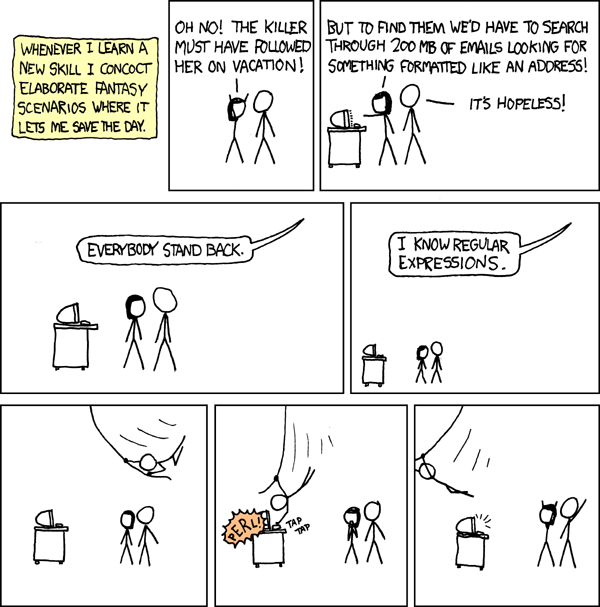
If you're a writer, you've probably wanted find-and-replace with regular expressions but not realized it.
You just finished your soon-to-be-bestselling romantasy, but you realized that "Liv" isn't the right name for the MC. She's more of a Barb, but you can't safely turn all Livs into Barbs without inadvertently changing "Live," "Livery," and "Livid" into "Barbe," "Barbery," and "Barbid." What do you do? Spend ten whole minutes clicking through find-and-replace output to decide whether or not to replace any particular usage?
But wait! You're clever. You searched for "Liv " with a space after it to avoid those problems. Later, you get feedback from your readers who wonder whom Ferdinand was referring to when he whispered "Liv…" (with a voice that sent shivers down Barb's spine). Oops! You didn't search for "Liv" followed by every possible punctuation mark.
Regular expressions expand the types of things you can search for by letting you specify special markers. The main marker that I think you might want is the word-boundary marker: \b. If you turn on regular expression mode in your find-and-replace, you'll be able to search for Liv's name and nothing else:
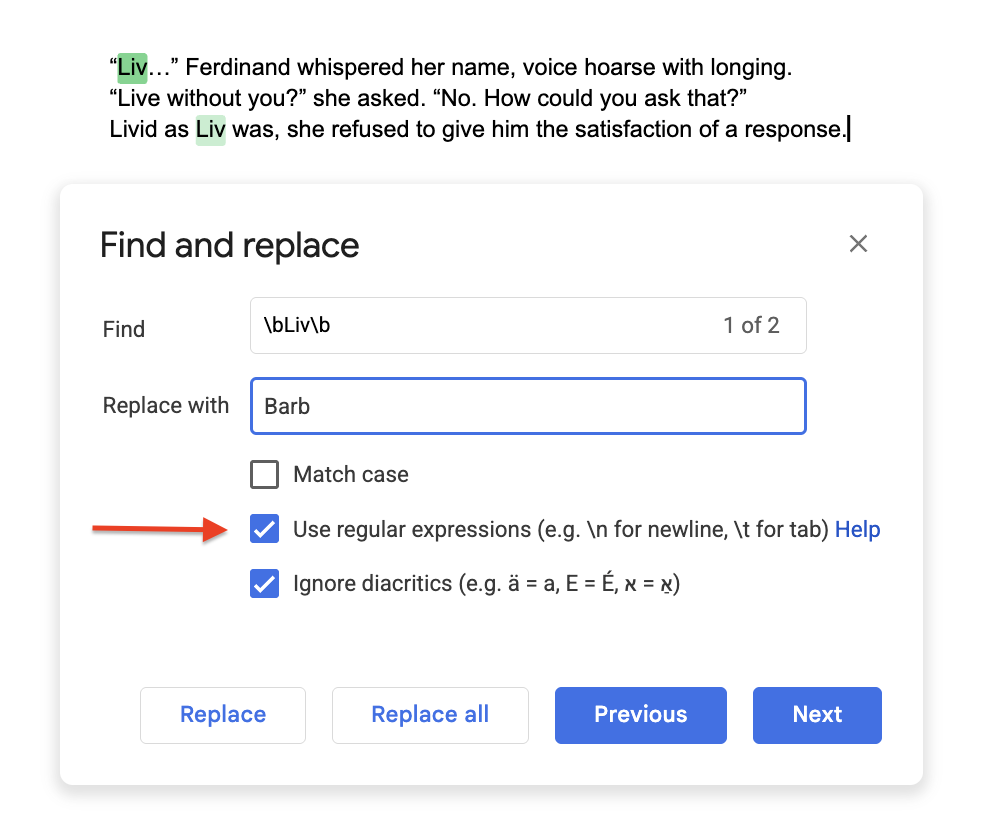
This sort of search doesn't come up very often, but when it does, knowing that it's possible, that you can construct more complicated searches, might let you save a few minutes of effort. If you need to, you can even construct more complicated searches:
- Your text editor didn't do smart quotes:
"\wshould identify every opening quote so you can replace them with a“, and\w"should identify every closing quote so you can replace them with a”. - You realize that Ferdinand does sultry things far too often, so you want to look for every sentence with "Ferdinand" followed by "sultry" as any word after it:
(Ferdinand|He|he) [^;.?!]*(sultry|sultrily)
Paste without formatting
When you copy something, you're storing two different things in your clipboard:
- The raw version of the text, only the words and punctuation.
- The formatted version of the text. (Your system clipboard technically stores a few different formats to support different spots that you might paste it)
When you ctrl-v/cmd-v to paste it into a document, your editor pastes the formatted version of whatever you copied. This is normally what you want, but sometimes you might just want the text. Use ctrl-shift-v/cmd-shift-v to paste the text without formatting. (Google docs even supports "Paste from Markdown" in the "edit" menu if that's something you need)
Markdown
### Google Docs supports a subset of Markdown

> Writing is thinking. Why think slowly?

- Typing quickly makes it cheaper to throw away an idea that's not working
- Needing your mouse to navigate the page can slow you down
- Many online text inputs require Markdown or HTML
You've probably seen text that looks like the above before: > denoting a quote or previous text, - as a marker for a list, _word_ or *word* for emphasis, and # to denote headings. Markdown is a small markup language that lets you quickly write formatted text that is readable even before it's transformed into its final form.
Google Docs supports a subset of Markdown, so if you're used to those formatting markers from writing on a forum, it might make creating Google Docs slightly more ergonomic.
Bonus tricks
- docs.new is a shortcut to create a new doc.
- If you've written something in Google Docs and want to post it on a site like Reddit that uses Markdown formatting, use "export as" from the "file" menu and choose Markdown. You can also export PDFs or even an EPUB. (Want a format not supported by its export feature? There's always pandoc to easily convert any text format into any other text format.
- Most documents will never be printed, so you might consider changing your default Page Setup to "Pageless." It doesn't stop you from printing them, but it means you don't have page breaks that make it marginally harder to read through your own work
- If you highlight text,
ctrl+k/cmd+kopens up a nice link-creation menu.